Show Matched Points
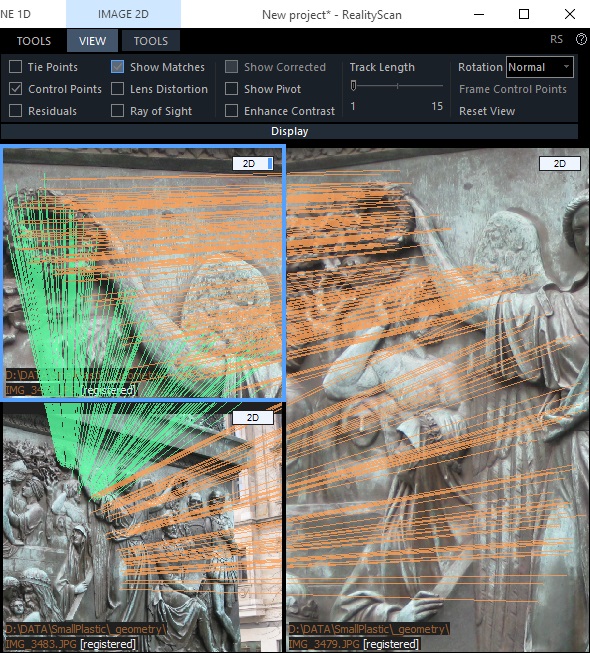
A match displays which point in an image has been recognized as the same as in another image. Open two or more 2D views to see matches between 2 or among more images.
- We recommend you to take a look at the number of matches (connections) among your images.
- To do so, just tick the (CTRL+M) button to see which points in an image have been recognized as the same as in another image. You need to open two or more 2D views to see matches between the two or among more images, and to enble the IMAGE 2D/VIEW tab. Once in that tab, you can find the checkbox in the ribbon.
- The matches among pictures are represented by green and/or orange lines between the respective points - see the screenshot which comes next.
- Generally, the greater the number of (correct) matches among images, the better quality of their alignment.
See also:
- Alignment Quality click here